If you have opened your WordPress admin and seen the WooCommerce Multilingual menu under WPML, you probably had one question – what is this and why do I need it?
This guide answers what each menu item does, what breaks if you ignore it, and how to set it up.
Plugin or Menu?
WPML is the core translation plugin. It handles pages, posts, and language settings.
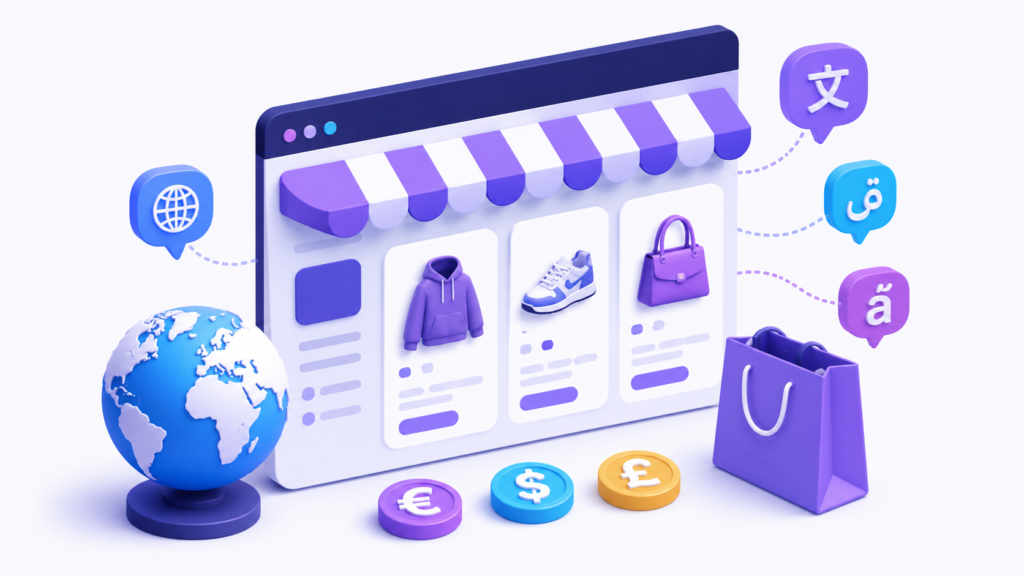
WooCommerce Multilingual (often called WCML) is a separate add-on plugin that extends WPML specifically for WooCommerce. It teaches WPML how to handle:
- Products and variations (size, color, material)
- Stock synchronization across languages
- Multiple currencies
- Cart and checkout behavior
The menu you see labeled “WooCommerce Multilingual” is the control panel for this add-on. It only appears if you have both plugins installed and active.
What Each Tab Actually Does
1. Dashboard
The first screen you see. Shows a quick status:
- Active languages
- How many products are untranslated
- Whether currency settings are configured
Warning: If you see messages like “Some products are not translated” – fix these before your store goes live. They are not suggestions.
2. Products Tab
This is where you translate:
- Product titles and descriptions
- Categories and tags
- Product attributes
Critical setting most people miss:
At the bottom, there is a checkbox labeled “Synchronize product data across translations.”
Turn this on. If you do not, changing the price on the original product does NOT update the translated versions. You will sell the same product at different prices in different languages.
3. Attributes Tab
For stores selling variable products – t-shirts with sizes, shoes with numbers, furniture with colors.
Attributes can be:
- Translated – “Large” becomes “Grande” in French
- Untranslated – stays “L” or “XL” across all languages
When to choose what?
- Translate attributes for fashion or consumer products
- Leave them untranslated for technical products (like “M4” screws, “USB-C” cables)
4. Currency Tab
This is where you set up multiple currencies. Two options:
Manual pricing (recommended)
Set a price for each currency manually:
- USD: $29.99
- EUR: €29.99
- GBP: £24.99
Takes more time but gives clean, professional prices.
Automatic conversion
WCML pulls live exchange rates and converts automatically. Faster, but you get uneven prices like €28.47.
Pro tip: Set display format to “symbol + code” (e.g., “€ EUR”) because symbols like $ or £ confuse customers outside the US and UK.
5. Cart and Checkout Tab
This tab has ONE setting that breaks conversions if you ignore it.
“Synchronize cart content when switching languages”
It is off by default.
What this means:
Customer adds a product to cart in English, switches to German, goes to checkout – cart is empty.
They do not know why. They leave. You lose the sale.
Turn this setting on.
6. SEO Tab
If you use Yoast SEO or Rank Math, this tab ensures each language version gets its own:
- Meta title
- Meta description
- Social media preview
- Hreflang tags
Skip this and Google sees duplicate content across all languages.
Reference Table
| Tab | What It Does | One Thing You Must Do |
|---|---|---|
| Dashboard | Shows status and warnings | Fix any warnings before launch |
| Products | Translates product content | Turn ON data synchronization |
| Attributes | Translates size, color, etc. | Decide – translate or not per attribute |
| Currency | Sets multiple currencies | Manual prices for main currencies |
| Cart & Checkout | Cart behavior settings | Turn ON cart synchronization |
| SEO | Meta data per language | Configure for Yoast/Rank Math |
Common issues with WooCommerce Multilingual menu and how to fix them
Problem: Translated Products But Checkout Still in English
This is the most common support ticket.
You translated all products, but buttons like “Add to Cart” and “Proceed to Checkout” are still in English.
Why? These are not product translations. These are WooCommerce interface strings handled separately through WPML String Translation.
Fix:
- Go to WPML → String Translation
- Search for “Add to cart”
- Translate it into every active language
- Repeat for “View cart,” “Proceed to checkout,” and “Total”
If you added a new language after setting up WCML, go to Dashboard → Updates and click “Update Translations” in the Translations section.
Problem: Categories Not Showing in Translated Navigation
If product categories appear in the default language but not in translations:
- Go to WooCommerce → WooCommerce Multilingual → Settings → Troubleshooting
- Select “Synchronize product categories”
- Click “Start”
This fixes category visibility issues in translated navigation.
Problem: Custom Checkout Layout Breaks
Some themes customize the checkout layout. When WCML is active, these customizations may stop working.
Why? WCML adds its own hooks to the checkout process and can trigger checkout updates more frequently. Some themes do not handle this correctly.
Fix: Theme authors need to ensure compatibility with WCML. If your theme is not on the WPML compatibility list, contact the theme authors.
Performance on Larger Stores
This is something nobody talks about.
WPML maps every piece of content to its translated version through database lookups. For WooCommerce, this adds extra queries on every page load.
Real example: A store with 50,000 products and 15,000 categories generated over 15,000 SQL queries for every admin page load.
What to do:
- Enable object caching on your server
- Use a performance-focused hosting provider
- Keep the number of languages reasonable (more languages = more queries)
- Enable WPML’s caching under WPML → Settings → Performance
Plugin Compatibility
Works out of the box:
- WooCommerce Subscriptions – Works, but you need to manually map subscription products in the Products tab
- WooCommerce Bookings – Works
- WooCommerce Memberships – Works
Needs extra work:
- Dynamic Pricing plugins – Set rules per currency separately
- Custom checkout fields – Translate labels via String Translation
Known issues:
- Product Bundle duplication breaks translations (WPML team is working on a fix)
- Heavy AJAX cart plugins may bypass WPML hooks and show untranslated text
- Some older themes do not support WCML’s checkout modifications
Final Tips
The WooCommerce Multilingual menu is powerful but complex. It works well if you understand what each setting does.
The three most important things:
- Turn on cart synchronization – otherwise you lose sales
- Turn on product data synchronization – otherwise prices get out of sync
- Use String Translation for interface text – not the product translation tab
Take time to test everything after changes. One wrong setting in that menu can cost you a sale.
Need Help with Your WooCommerce Multilingual Setup?
Setting up WPML and WooCommerce Multilingual can be tricky. One wrong setting and your cart stops working, prices show in the wrong currency, or translations break.
I have been working with WordPress and WooCommerce for years. I know exactly where things break and how to fix them.
Get a free estimate within 24 hours for your specific issue. If I am fully booked, one of our other WPML-certified developers will step in to help you.
Send me:
- What plugins you are using
- What is not working
- URL of your store
I will look at your setup and tell you exactly what needs to be fixed and how much it will cost.
No obligations. No upsells. Just an honest assessment.
24-hour response time. Serious inquiries only.