If you’re running a WooCommerce store, tracking page views alone isn’t enough. To understand how customers interact with your products, you need to track custom WooCommerce events such as adding products to the cart, starting checkout, applying coupons, selecting payment methods, or clicking custom buttons.
Google Tag Manager (GTM) makes this possible without constantly editing your theme files. Combined with a proper data layer plugin, it gives you a flexible way to measure almost any interaction on your WooCommerce website.
What Are Custom WooCommerce Events?
A custom event is any user action that isn’t automatically tracked by Google Analytics or WooCommerce.
Examples include:
- Clicking an “Add to Wishlist” button
- Opening a product size guide
- Watching a product video
- Applying a coupon code
- Clicking a phone number
- Downloading a product manual
- Using product filters
- Selecting a product variation
- Requesting a quote
- Clicking a financing calculator
These events provide valuable insights into customer behavior and can help you improve conversions.
Why track custom WooCommerce events?
Standard WooCommerce reports tell you what customers purchased.
Custom events help explain how they reached that purchase.
For example, you may discover:
- Customers who watch product videos convert at a much higher rate.
- Visitors frequently click the size guide before purchasing.
- Many users abandon checkout after selecting a shipping option.
- Most coupon users come from a specific marketing campaign.
This information allows you to improve both your website and your advertising campaigns.
The best way to track custom WooCommerce events
For most websites, the recommended approach is to use Google Tag Manager (GTM).
Instead of placing multiple tracking scripts throughout your theme, GTM acts as a central hub where all marketing and analytics tags are managed.
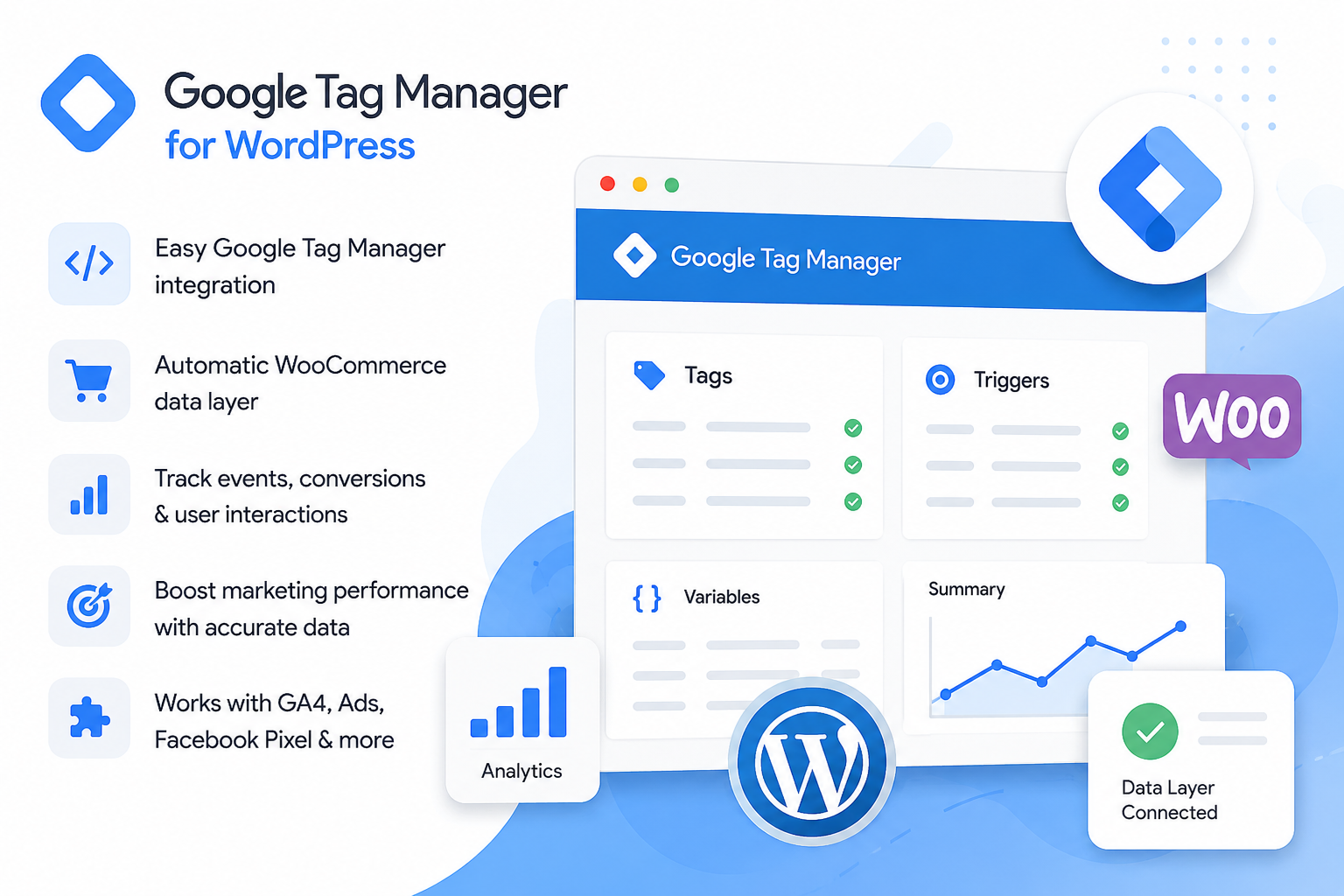
This approach offers several advantages:
- Easier maintenance
- Faster implementation
- Fewer code changes
- Better debugging
- Cleaner website code
Use a Data Layer Plugin to track custom WooCommerce events
One of the biggest challenges is sending WooCommerce information into Google Tag Manager.
Rather than writing custom JavaScript, many developers use a dedicated plugin that creates a structured data layer automatically.
A popular option is GTM4WP (Google Tag Manager for WordPress). It automatically exposes useful WooCommerce information such as:
- Product ID
- SKU
- Product name
- Category
- Price
- Quantity
- Cart contents
- Checkout steps
- Purchase information
Because the data already exists inside the data layer, creating new tags inside GTM becomes much easier.
Examples of Custom WooCommerce Events
Besides the standard ecommerce events, many stores also track:
Product interactions
- Product image gallery clicks
- Zoom usage
- Product video plays
- Variation selections
- Product tabs opened
- Specification downloads
Shopping behavior
- Wishlist additions
- Compare button clicks
- Coupon usage
- Shipping estimator
- Financing calculator
Checkout interactions
- Checkout started
- Shipping method changed
- Payment method selected
- Form errors
- Checkout abandoned
Marketing interactions
- Newsletter signup
- Popup conversions
- Banner clicks
- Affiliate clicks
- Contact form submissions
Using Google Tag Manager
Once your WooCommerce data is available inside the data layer, creating an event usually follows three steps.
Step 1
Create a Trigger.
For example:
- Button Click
- Form Submission
- Custom Event
- Element Visibility
Step 2
Create a Tag.
This is usually:
- GA4 Event
- Google Ads Conversion
- Meta Pixel
- LinkedIn Insight
- TikTok Pixel
Step 3
Publish the container.
After testing everything in Preview Mode, publish the new GTM version.
Debug Before Publishing
Never publish new tracking without testing.
Google Tag Manager includes Preview Mode, while Google Analytics 4 provides DebugView, allowing you to verify that events are received correctly.
Common problems include:
- Event names don’t match.
- Triggers fire twice.
- Variables return empty values.
- Consent Mode blocks events.
- Cache delays changes.
Testing first saves a lot of troubleshooting later.
Should You Write Custom Code?
Sometimes, you will need to write custom code.
While GTM and WooCommerce plugins cover most use cases, custom development may still be required for:
- Membership websites
- Booking systems
- Custom product builders
- Product configurators
- Subscription platforms
- Custom checkout flows
In these situations, developers often push additional data into the data layer using custom JavaScript or PHP.
Alternative Plugins
Although GTM4WP is one of the most popular free solutions, it isn’t the only option.
Depending on your workflow, you may also consider:
- PixelYourSite – focuses on Meta Pixel, Google Analytics, and server-side tracking with an easier setup.
- Conversios – provides guided Google Ads, GA4, and Merchant Center integrations with less manual GTM configuration.
- WooCommerce Google Analytics Integration – suitable for simpler analytics setups without advanced Google Tag Manager workflows.
The best choice depends on your technical experience and the complexity of your tracking requirements.
Common Mistakes
Some of the most common implementation mistakes include:
- Installing multiple Google Tag Manager plugins.
- Loading the GTM container manually and through a plugin at the same time.
- Creating duplicate GA4 tags.
- Forgetting to test in Preview Mode.
- Publishing changes without validating the data layer.
- Ignoring Consent Mode requirements.
These issues often result in inaccurate analytics and duplicate conversion data.
Final Thoughts
Custom WooCommerce event tracking provides valuable insight into how visitors interact with your store before making a purchase.
For most websites, combining Google Tag Manager with a plugin such as GTM4WP offers a flexible and reliable solution without requiring constant theme modifications. If you need a more guided setup with built-in integrations, plugins like PixelYourSite or Conversios can also be good alternatives.
Whichever approach you choose, take the time to plan your events, test them thoroughly, and avoid duplicate tracking. Clean, accurate data will help you make better marketing decisions and improve your store’s overall performance.