If you have ever added a PHP snippet to your WordPress site and watched it break everything, there is a good chance PHP tags were the problem.
This is the most common mistake people make with the Code Snippets plugin.
What Actually Breaks?
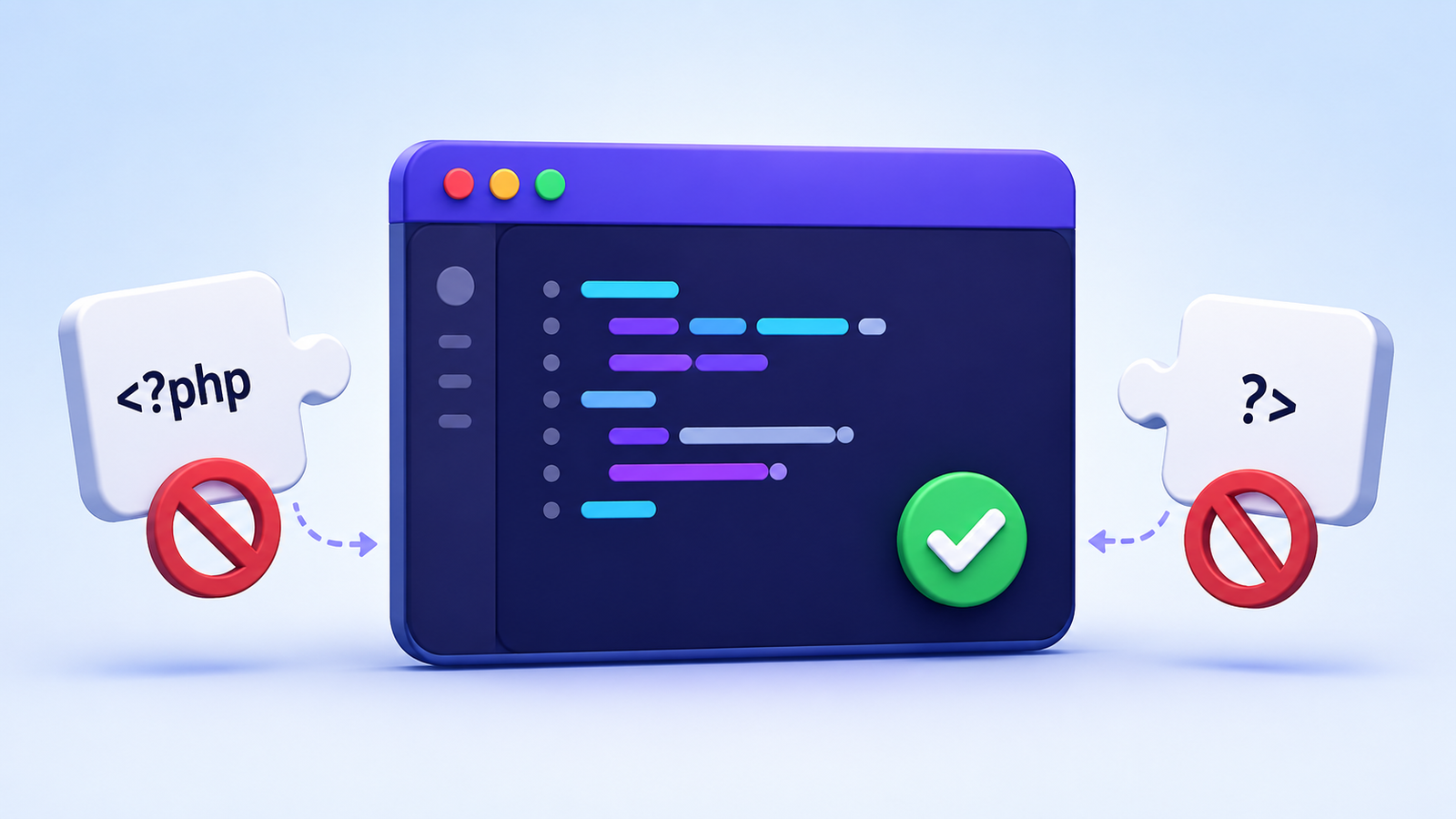
The Code Snippets plugin handles PHP code differently than editing your theme’s functions.php file. When you add a snippet through the plugin, you do not need to add <?php at the start or ?> at the end.
The plugin adds the opening tag automatically. If you add it yourself, you get duplicate tags. And duplicate tags break your site.
The bigger problem is the closing tag (?>). If you add one at the end of your snippet, it tells PHP “stop processing here.” But the plugin loads multiple snippets together. So your closing tag cuts off the rest of your snippets. Nothing after it runs.
What This Looks Like in Practice
One user on the WordPress forum described it perfectly:
“My wild guess: it broke because of the PHP tags. You are not working in an HTML editor here that would demand the tags. You do work in a PHP editor and especially the closing PHP tag cuts off further PHP code outside your snippet which easily breaks sites.”
Another user found the fix by removing the closing tag from their snippet:
“The next one in the list of snippets already contained a closing tag. So I thought I would remove that closing tag. BINGO! ALL my snippets started working again!”
Correct Way to Add PHP Snippets
What to Do
When adding PHP code through the Code Snippets plugin:
- Start directly with your PHP code
- Do NOT add
<?phpat the beginning - Do NOT add
?>at the end
Example of correct code:
// Display current time in Los Angeles
$timezone = new DateTimeZone('America/Los_Angeles');
$datetime = new DateTime('now', $timezone);
echo '<p>Current time: ' . $datetime->format('g:i A') . '</p>';
What Not to Do
Incorrect:
<?php
// Display current time
$timezone = new DateTimeZone('America/Los_Angeles');
$datetime = new DateTime('now', $timezone);
echo '<p>Current time: ' . $datetime->format('g:i A') . '</p>';
?>
Notice the difference? The correct version has no <?php and no ?>. The plugin handles both automatically.
Why Does This Happen?
Both Code Snippets and WPCode attempt to remove opening and closing PHP tags automatically when you save a snippet. But sometimes – especially when importing snippets or pasting from external sources – the plugin misses them.
One user with 39 active snippets had all of them stop working because a single snippet had a closing tag. Removing that one tag fixed everything.
What About CSS and JavaScript Snippets?
This is where the free vs. Pro confusion starts.
The free version of Code Snippets only handles PHP snippets. If you want to add CSS, you need to wrap it in PHP code using hooks like add_action('wp_head', ...) or add_action('wp_enqueue_scripts', ...)
Code Snippets Pro adds separate snippet types for CSS and JavaScript, letting you add them directly without wrapping in PHP. With CSS snippets, you can adjust fonts, colors, and layouts without modifying theme files. JavaScript snippets enable form validations, animations, and custom user interactions.
The Pro version also adds advanced conditional logic and the ability to organize snippets with tags and descriptions.
Code Snippets Pro is a standalone plugin that replaces the free version. You cannot run both at the same time. When upgrading, you uninstall the free version and install the Pro version. Both share the same database, so all your snippets transfer automatically as long as you have “Complete Uninstall” unchecked in settings before removing the free plugin.
If your Pro license expires, you can downgrade back to the free version. Just remove any Pro-only snippets (CSS, JavaScript, conditional logic) first.
Quick Reference
| What You Do | Result |
|---|---|
Add <?php at start |
Duplicate opening tag. Site may break or snippet won’t run. |
Add ?> at end |
Cuts off other snippets. Some or all snippets stop working. |
| Add both tags | High chance of breaking your entire site. |
| Use neither tag | Snippet works as expected. |
| Add CSS or JS to free version | Must wrap in PHP code (add_action hooks). |
| Add CSS or JS to Pro version | Use dedicated snippet types. No PHP wrapping needed. |
| Downgrade Pro to Free | Remove Pro-only snippets first. Uninstall Pro, install Free. |
What If I Already Added Tags and My Site Broke?
Do not panic. The plugin has an error recovery system. If a snippet breaks your site, you can usually fix it by:
- Clicking your browser’s back button immediately after the error appears
- The plugin will show you the broken snippet with a deactivate option
- Deactivate it, remove the PHP tags, and reactivate
If you cannot access the admin area at all, you can disable all snippets temporarily by adding this to your wp-config.php file:
define('CODE_SNIPPETS_SAFE_MODE', true);This deactivates all snippets and lets you log in to fix the broken one.
Final Tips
- Always test snippets on a staging site first
- Name your snippets clearly so you know what each one does
- If a snippet comes from a tutorial that shows PHP tags, remove them before pasting
- Keep backups before adding new code
- Consider Code Snippets Pro if you frequently add CSS or JavaScript snippets – it saves time by not having to wrap them in PHP
Need Help with Your Code Snippets?
If your snippets are not working or you are stuck with a broken site, I can help.
Get a free estimate within 24 hours for your specific issue.
Send me:
- What you are trying to achieve
- The code you are using
- URL of your site
I will look at your setup and tell you exactly what needs to be fixed and how much it will cost.
If I am fully booked, one of our WordPress developers will step in to help you.
No obligations. Just an honest assessment.
24-hour response time. Serious inquiries only.