
What is GTranslate?
GTranslate is a WordPress translation plugin powered by Google’s Neural Machine Translation system. Its free version provides a language selector widget that uses Google Translate’s client-side JavaScript to translate page content in the browser — the same technology behind the “Translate this page” button in Chrome. This approach requires no server configuration and translates content instantly, but the translations are rendered client-side and are generally not indexed by search engines as separate language URLs.
GTranslate’s paid plans (starting at $9.99/month) unlock a fundamentally different architecture: instead of client-side translation, content is served from GTranslate’s cloud-hosted subdomains (es.yourdomain.com, fr.yourdomain.com) with pre-translated, statically cached pages that search engines can crawl and index as separate language versions. This SEO-friendly mode supports over 100 languages, URL translation, and an inline editor for correcting machine translations. Neural translation quality with Google Translate has improved significantly in recent years and is adequate for informational content, though specialized or technical content may require human review.
GTranslate is the best choice for sites that need rapid multilingual deployment with automatic translation at low cost, particularly where SEO for translated content is not a priority (the free tier) or is needed with minimal management overhead (paid tiers). For sites that prioritize translation accuracy, content control, and data ownership, WPML, Polylang, or TranslatePress are more appropriate despite their higher management requirements.
GTranslate Key Features
- Google Neural Machine Translation engine (100+ languages)
- Free: client-side translation widget (not SEO-indexed)
- Paid: cloud-hosted subdomains with pre-translated cached pages (SEO-friendly)
- URL translation for SEO (paid)
- Inline editor for correcting machine translations (paid)
GTranslate Pros & Cons
Pros
- Fastest possible multilingual deployment — free version works immediately after installation
- 100+ language support via Google's Neural MT engine
- Cloud-hosted subdomains eliminate server load for translation delivery
Cons
- Free version is not SEO-friendly — client-side translation not indexed as separate pages
- Machine translation quality may require human review for professional content
GTranslate Free vs Premium
Free: Google Translate client-side widget, no SEO-indexed languages. Paid plans start at $9.99/month for subdomain-hosted SEO pages and URL translation, scaling up for more languages and features.
Common GTranslate Problems & Fixes
GTranslate free version translations are not being indexed by Google — translated pages do not appear in search results. How do I fix this?
Client-side JavaScript translation (the free version) is rendered in the browser after page load. Googlebot crawls and indexes the initial HTML before JavaScript executes, so it does not see translated content — only the original language. To get translated content indexed as separate language pages, upgrade to a paid GTranslate plan that uses cloud-hosted subdomains. These subdomains serve pre-translated HTML that Googlebot can crawl and index as separate language versions with proper hreflang tags.
GTranslate language selector is not appearing on my site after installation — how do I add it?
GTranslate provides multiple placement options: (1) Appearance → Widgets — add the GTranslate widget to any widget area; (2) use the shortcode [gtranslate] in any post or page; (3) use a PHP function in your theme for custom placement. If the widget area is not available or the shortcode is not rendering, verify the GTranslate plugin is active. In GTranslate → Settings, configure the widget style, language display (flags, names, or both) and save before testing placement.
GTranslate paid subdomain pages are returning 404 errors — the language subdomain URLs are not resolving. How do I fix this?
Language subdomain 404 errors indicate DNS configuration is missing. For GTranslate’s subdomain hosting, add a wildcard CNAME record (*.yourdomain.com → translate.gcdn.co) to your domain DNS, or individual CNAME records for each language subdomain. GTranslate provides the exact DNS records in the dashboard. DNS propagation takes 24-48 hours after adding records. If the subdomains resolve but return 404 for specific pages, check the GTranslate dashboard for crawl errors on those URLs.
GTranslate Customization
How do I exclude specific pages from GTranslate automatic translation?
In GTranslate → Settings → Exclude Paths, add URL paths or URL patterns to exclude from translation. For example, add /account/ to exclude all account-related pages, or /checkout/ to keep WooCommerce checkout in the original language. For client-side translation (free), add the CSS class “notranslate” to HTML elements that should not be translated — GTranslate respects this class, as does Google Translate.
Can I customize the GTranslate language selector appearance to match my theme?
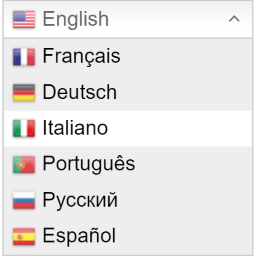
Yes. In GTranslate → Settings → Widget Customization, configure the selector style (dropdown list, flags only, flags with language names, material design dropdown). Flag size, text display format, and hover behavior can be adjusted. For advanced styling, the widget outputs standard HTML with CSS classes that can be targeted in your theme’s stylesheet for complete visual customization. The widget is also available in multiple preset styles to match common WordPress theme aesthetics.
Frequently Asked Questions about GTranslate
Is GTranslate free sufficient for a WordPress blog?
If SEO for translated content is not required, GTranslate free works for blog posts that are discovered via the original language search ranking and then read in translated form by individual visitors. The client-side translation is fast and covers all page content. If you want translated blog posts to rank independently in search results for different languages, the paid subdomain hosting is required.
How does GTranslate compare to Weglot?
Both use automatic machine translation delivered from cloud infrastructure. GTranslate uses Google Neural MT exclusively; Weglot uses a combination of engines. Weglot’s paid plans are significantly more expensive (€15-79/month vs GTranslate’s $9.99+/month) but offer a more refined visual translation editor and better management tools. GTranslate is the lower-cost automatic translation option; Weglot provides more polish at a higher price.
Can GTranslate break after updates?
Yes, that can happen, especially on older sites with many plugins. This usually happens when the plugin, theme, and add-ons are updated out of sequence. In most cases, testing on staging catches the issue before it reaches the live site. From experience, backups and changelog reviews save a lot of cleanup time.
What should I check before installing GTranslate?
Start by checking whether another plugin already does the same job. In most cases, overlap is what creates avoidable conflicts and performance issues. A common issue is installing a plugin because it looks convenient without checking the stack first. From experience, a short compatibility review avoids most of the pain later.