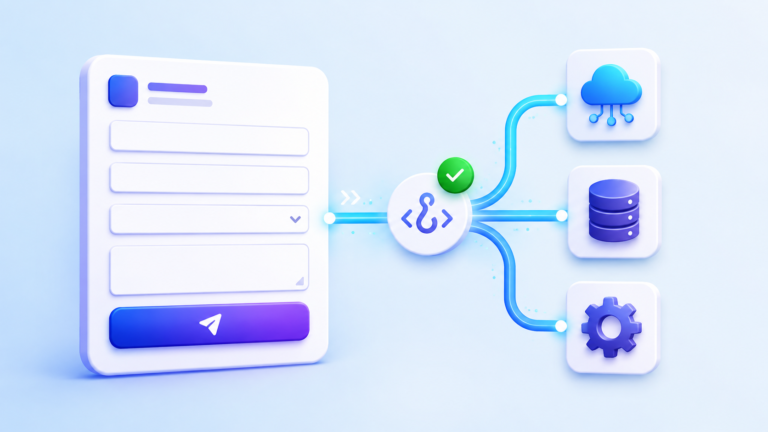
The Kadence Blocks form block provides a lightweight, Gutenberg-native alternative to dedicated form plugins. It supports common field types, validation, and email notifications, all without adding extra plugins to the website. When a visitor submits the form, they see a success message confirming their submission, and the website owner should receive an email notification. However, sometimes the success message appears, but the email never arrives in the inbox, leaving the owner unaware of new inquiries and potential customers thinking they have been ignored.
This problem can be incredibly damaging for businesses that rely on forms for leads, support requests, or contact inquiries. Visitors who fill out the form believe their message has been sent successfully, but the website owner never receives it and therefore never responds. The result is lost business opportunities, frustrated customers who feel ignored, and a damaged reputation for the company. Understanding why Kadence Blocks forms fail to send emails is essential for anyone using this block for lead generation.
The most common cause of this problem is that the Kadence Blocks form uses the WordPress wp_mail() function, which relies on the hosting server to send emails. Most shared hosting servers have terrible email reputations because spammers abuse them, and emails sent from these servers are often blocked or silently dropped by email providers like Gmail and Outlook. The form submission is processed successfully, and the success message appears, but the email never reaches its destination because it was blocked at the server level before it could be delivered.
Why Kadence Blocks forms fail to send email notifications
WordPress uses the wp_mail() function to send all emails, including those from Kadence Blocks forms. This function sends emails directly from the hosting server using the server’s built-in mail transfer agent (MTA). Most shared hosting servers are not optimized for email delivery, and their IP addresses often appear on email blacklists because other customers on the same server have sent spam. When Gmail, Outlook, or Yahoo receives an email from a blacklisted IP address, they may reject it entirely or filter it to the spam folder without any notification to the sender or recipient.
Even if the email is not blocked outright, it may be filtered as spam due to missing authentication records. SPF (Sender Policy Framework) and DKIM (DomainKeys Identified Mail) are DNS records that prove the email was sent from an authorized server. Without these records, email providers assume the message might be forged and treat it as suspicious. The success message appears because the form successfully handed the email to the hosting server, but what happens after that handoff is completely outside the control of Kadence Blocks and depends entirely on the server’s reputation and configuration.
Another cause of form email failure is that the recipient email address may be incorrect or improperly formatted in the Kadence Blocks form settings. The form block allows multiple email addresses separated by commas, but any extra spaces or invalid characters can cause the entire email to fail silently. Additionally, some hosting providers block the wp_mail() function entirely on their servers as a security measure, forcing all email to be sent through SMTP. In these cases, Kadence Blocks forms will never send emails until SMTP is properly configured on the website.
How to check if WordPress email is working properly
Install a simple SMTP plugin like WP Mail SMTP or FluentSMTP for testing purposes only, and configure it with a free Brevo account (formerly Sendinblue). Send a test email from the SMTP plugin dashboard to an email address you can access, preferably a Gmail or Outlook address. If the test email arrives in the inbox, WordPress can send emails with proper SMTP configuration, and Kadence Blocks forms will work once SMTP is set up. If the test email fails even with SMTP, the problem is likely with the email service or DNS configuration rather than Kadence Blocks itself.
Step by step guide to fixing Kadence Blocks form emails
Follow these steps in order to ensure Kadence Blocks forms send email notifications successfully. Configuring SMTP is the most reliable solution for form email delivery problems and will resolve the vast majority of cases.
- Install an SMTP plugin like WP Mail SMTP or FluentSMTP from the WordPress repository
- Connect the SMTP plugin to a professional email service such as Brevo (formerly Sendinblue), SendLayer, or SMTP2GO
- Create a free account on Brevo for up to 300 emails per day, which is sufficient for most small business websites
- Copy the SMTP credentials from the email service dashboard into the SMTP plugin settings
- Send a test email using the SMTP plugin to verify the connection works properly before testing forms
- Add SPF and DKIM records to the domain DNS settings as instructed by the email service
- Wait up to 48 hours for DNS changes to propagate across the global internet system
- Test the Kadence Blocks form again and check whether the email arrives in the primary inbox
- Check the spam folder because some email providers may filter messages incorrectly
- Use mail-tester.com to score the email and identify any remaining deliverability problems
How to configure Kadence Blocks form email settings correctly
Edit the page containing the Kadence Blocks form and open the form block settings panel. Navigate to the email settings section and verify that the recipient email address is correct and properly formatted without any extra spaces. Set the “From” email address to match the website domain name (e.g., info@yourwebsite.com) rather than using a personal Gmail or Yahoo address, as this improves deliverability. Set a clear subject line that helps recipients identify the purpose of the message, and ensure that the email content includes the submitted form data using the available merge tags.
Kadence Blocks form email troubleshooting reference table
Here is a reference table for diagnosing form email problems in Kadence Blocks based on specific symptoms you might encounter.
| Symptom | Most likely cause | Recommended solution | Error message appears immediately after submit | SMTP not configured or email settings wrong | Configure SMTP plugin and verify recipient email address | Form shows success but no email arrives | Email sent but blocked or spam-filtered | Check spam folder and configure SPF/DKIM DNS records | Some form submissions work but others do not | Rate limiting or email service restrictions | Upgrade to paid SMTP plan for higher sending limits | Email arrives but missing form data | Email template configuration issue in form settings | Check email content settings and add correct field merge tags |
|---|